
Remote Support Guide
Install Emry Remote Support
This guide walks you through installing Level, the small app Emry uses to see your screen and fix problems on your computer. It takes about 5 minutes. Every step has a picture.
Only install this when an Emry technician asks you to. If someone you did not expect asks you to install it, hang up and call us at (603) 202-3200.
Windows
Windows 10 or 11
Before you start
- Stay on the phone with your Emry technician if you can.
- You need to be signed in as an administrator, or have someone nearby who knows the admin password.
- Save your work and close other apps. The install does not restart your computer.
Option A · Recommended
The quick way: copy one command
This command downloads Level and connects your computer to Emry in one go. You do not need to type anything.
Windows install command
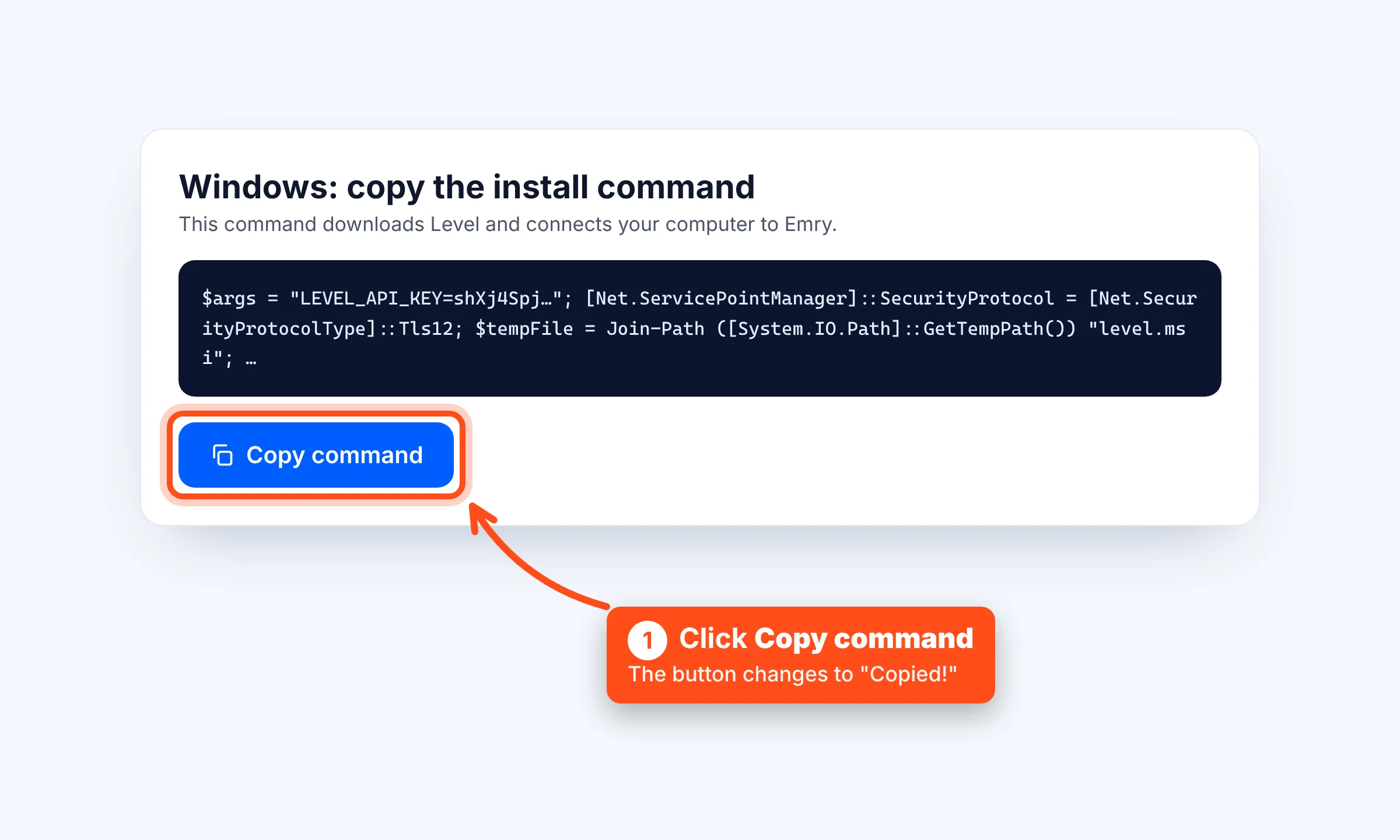
$args = "LEVEL_API_KEY=shXj4Spj744MZdehgxVq6a7q:50006"; [Net.ServicePointManager]::SecurityProtocol = [Net.SecurityProtocolType]::Tls12; $tempFile = Join-Path ([System.IO.Path]::GetTempPath()) "level.msi"; $ProgressPreference = 'SilentlyContinue'; Invoke-WebRequest -Uri "https://downloads.level.io/level.msi" -OutFile $tempFile; $ProgressPreference = 'Continue'; Start-Process msiexec.exe -Wait -ArgumentList "/i `"$tempFile`" $args";Step 1:Click Copy command
Click the blue Copy command button above. It changes to Copied! so you know it worked.
Step 2:Right-click the Start button
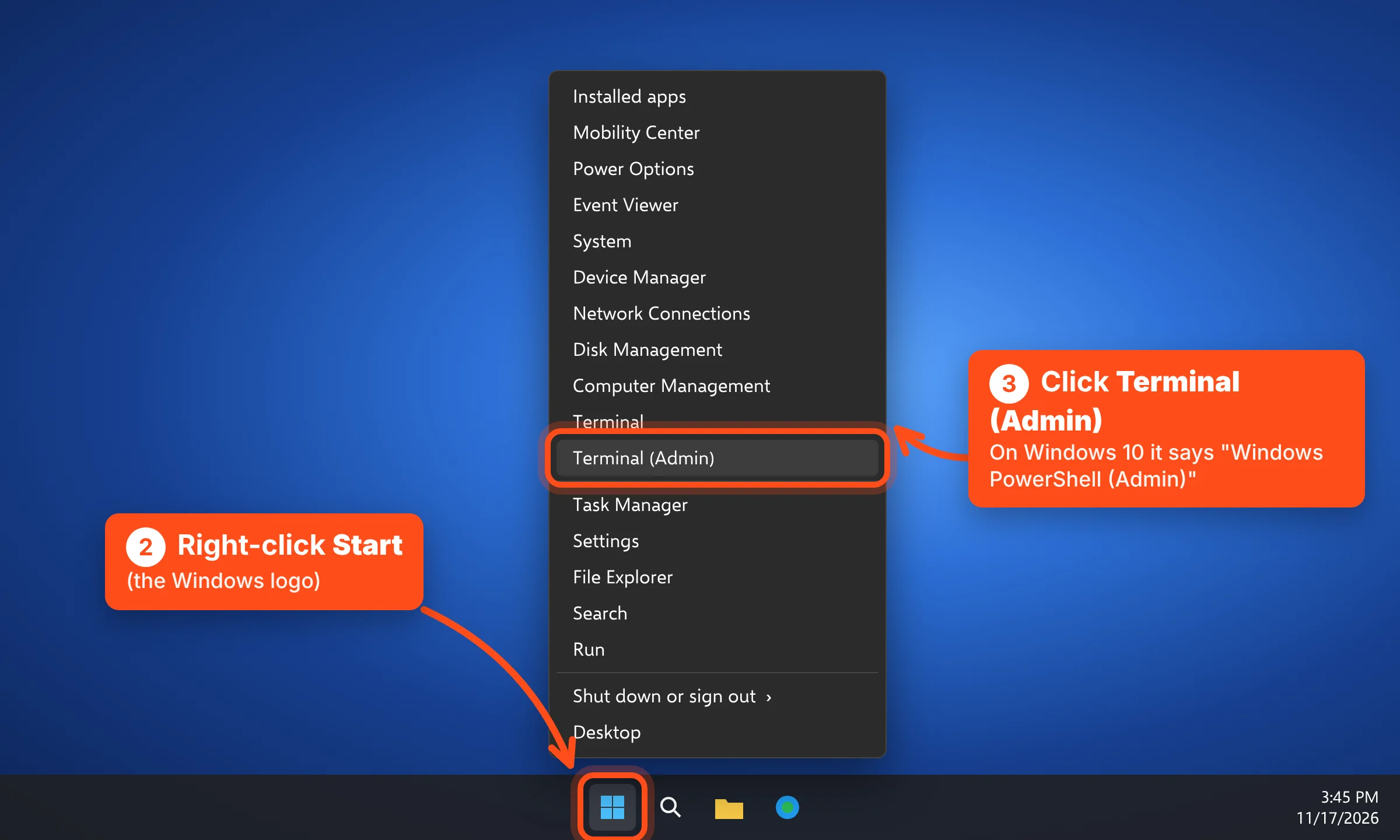
Find the Windows logo at the bottom of your screen. Click it with the right mouse button. A menu opens.
Step 3:Click Terminal (Admin)
In the menu, click Terminal (Admin). On Windows 10 it may say Windows PowerShell (Admin) instead.
Step 4:Click Yes
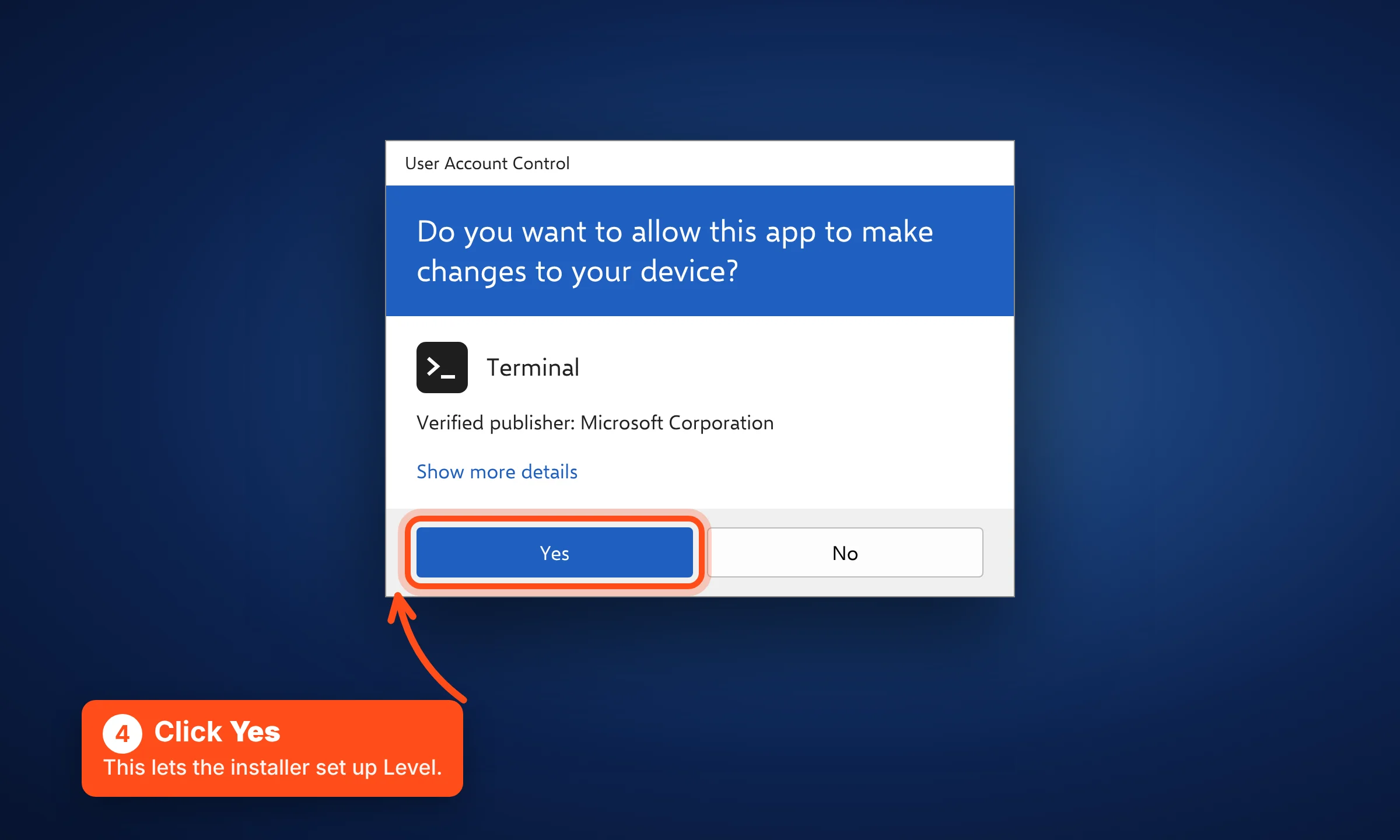
Windows asks, “Do you want to allow this app to make changes to your device?” Click Yes. A dark window opens.
Step 5:Paste the command and press Enter
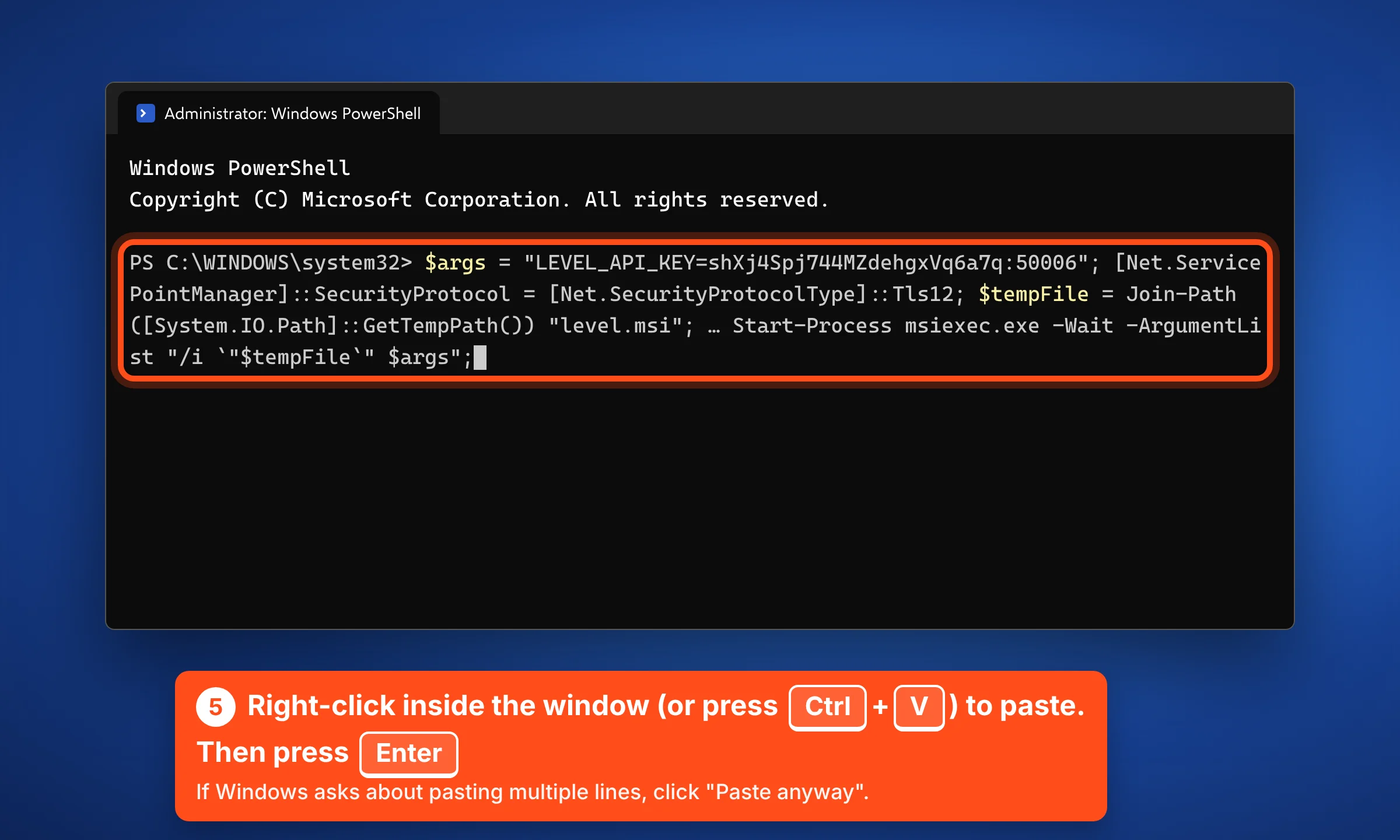
Right-click anywhere inside the dark window to paste, or press Ctrl + V. Then press Enter. If Windows asks about pasting, click Paste anyway.
Step 6:Wait about a minute
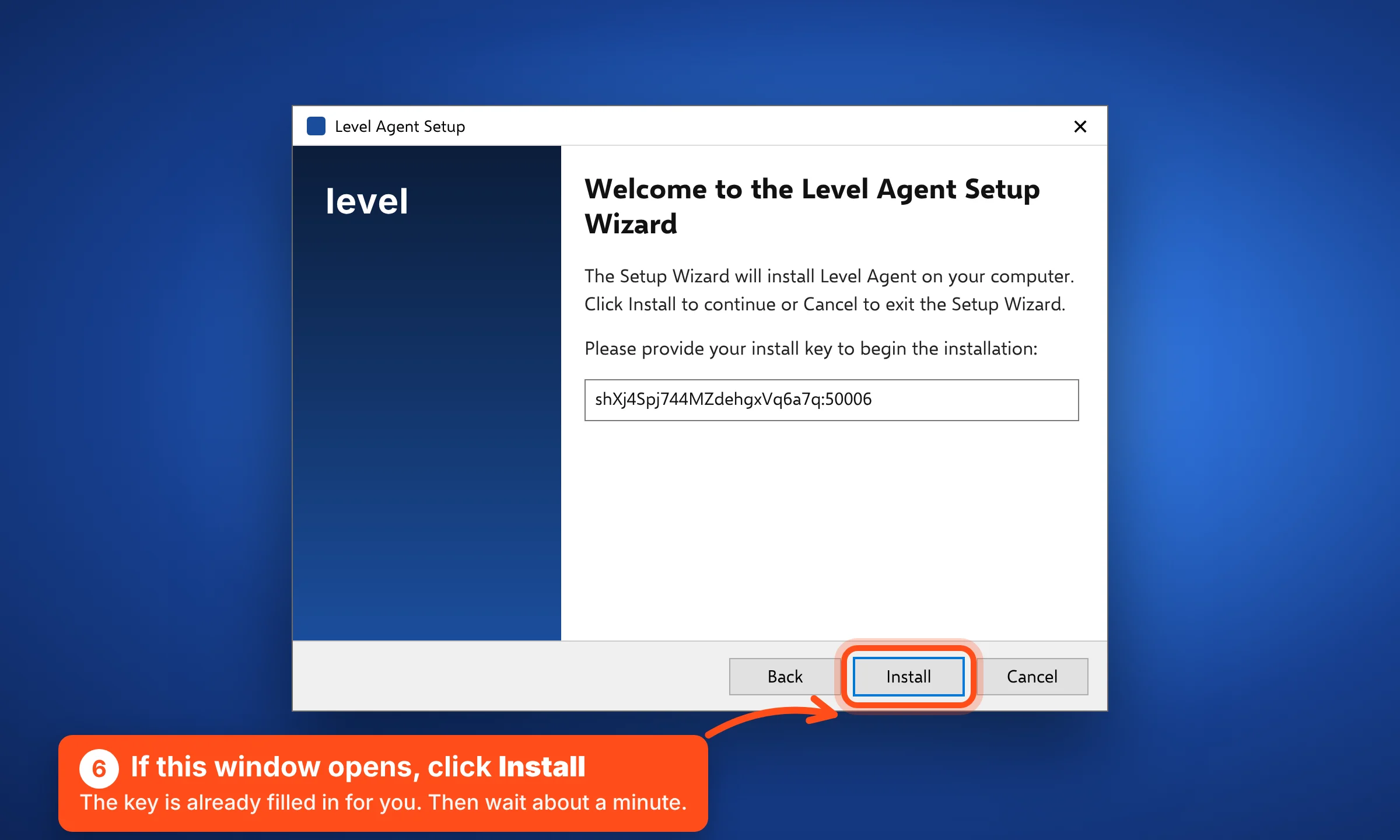
Level downloads and installs. If a Level Agent Setup window opens, the key is already filled in. Just click Install, and click Yes if Windows asks again.
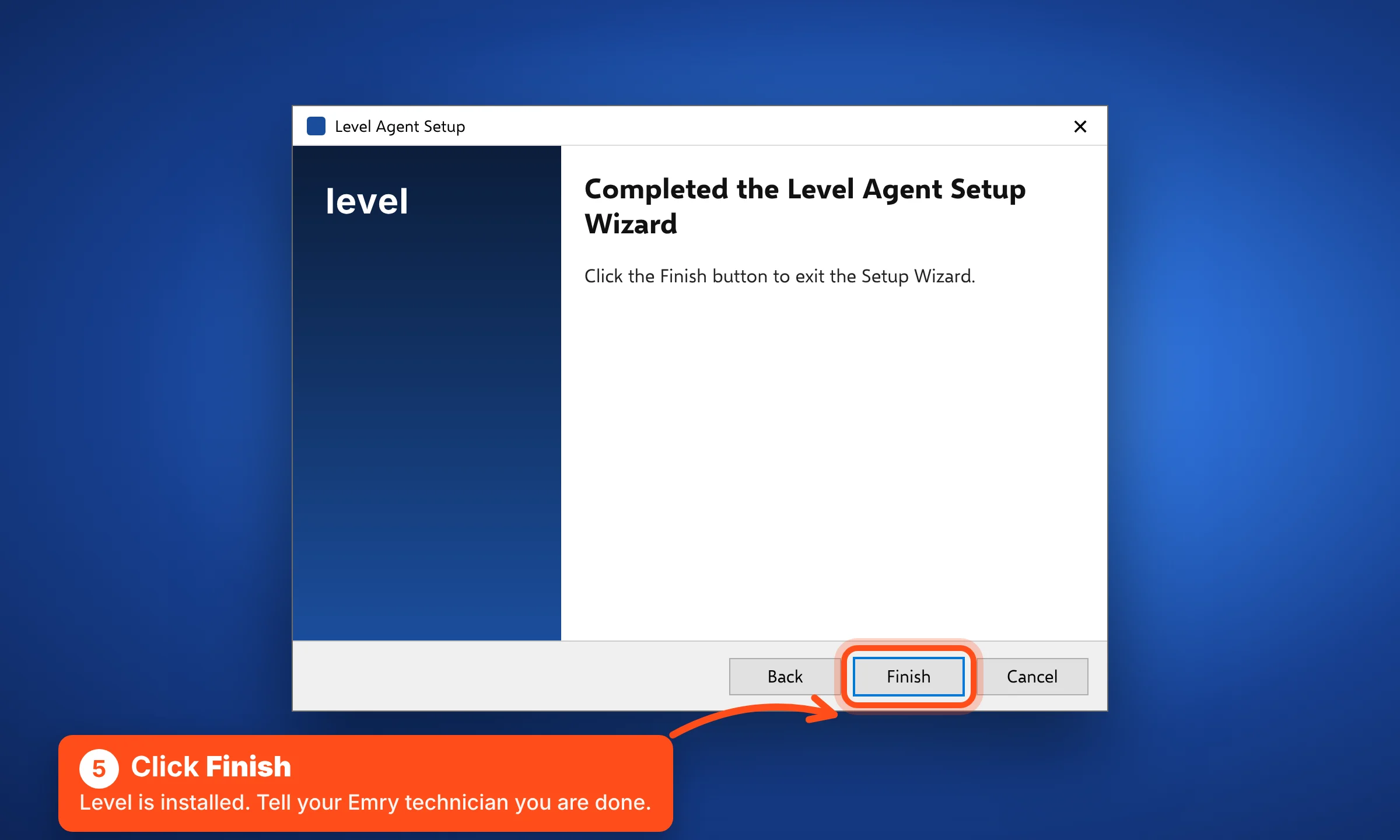
Step 7:Click Finish and tell your technician
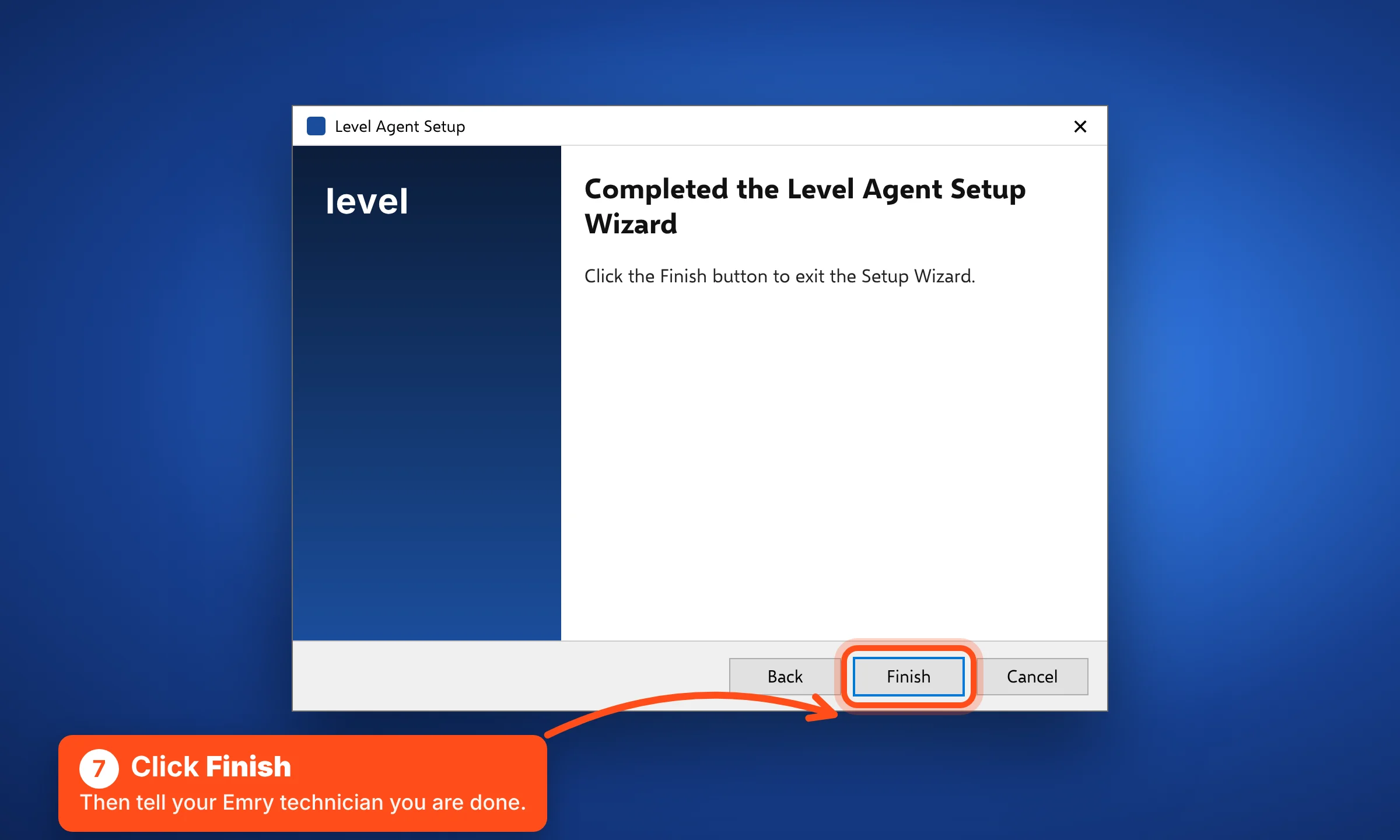
When you see “Completed the Level Agent Setup Wizard,” click Finish. You can close the dark window. Tell your Emry technician you are done.
Option B
Download and install it yourself
Use this if the quick way does not work. You will paste an install key during setup.
This downloads the official installer straight from Level, the company that makes the app. If your browser asks, choose Keep or Save.
Step 1:Copy the key, then download
Click Copy key above, then click Download for Windows. If your browser asks, choose Keep or Save.
Step 2:Open the file
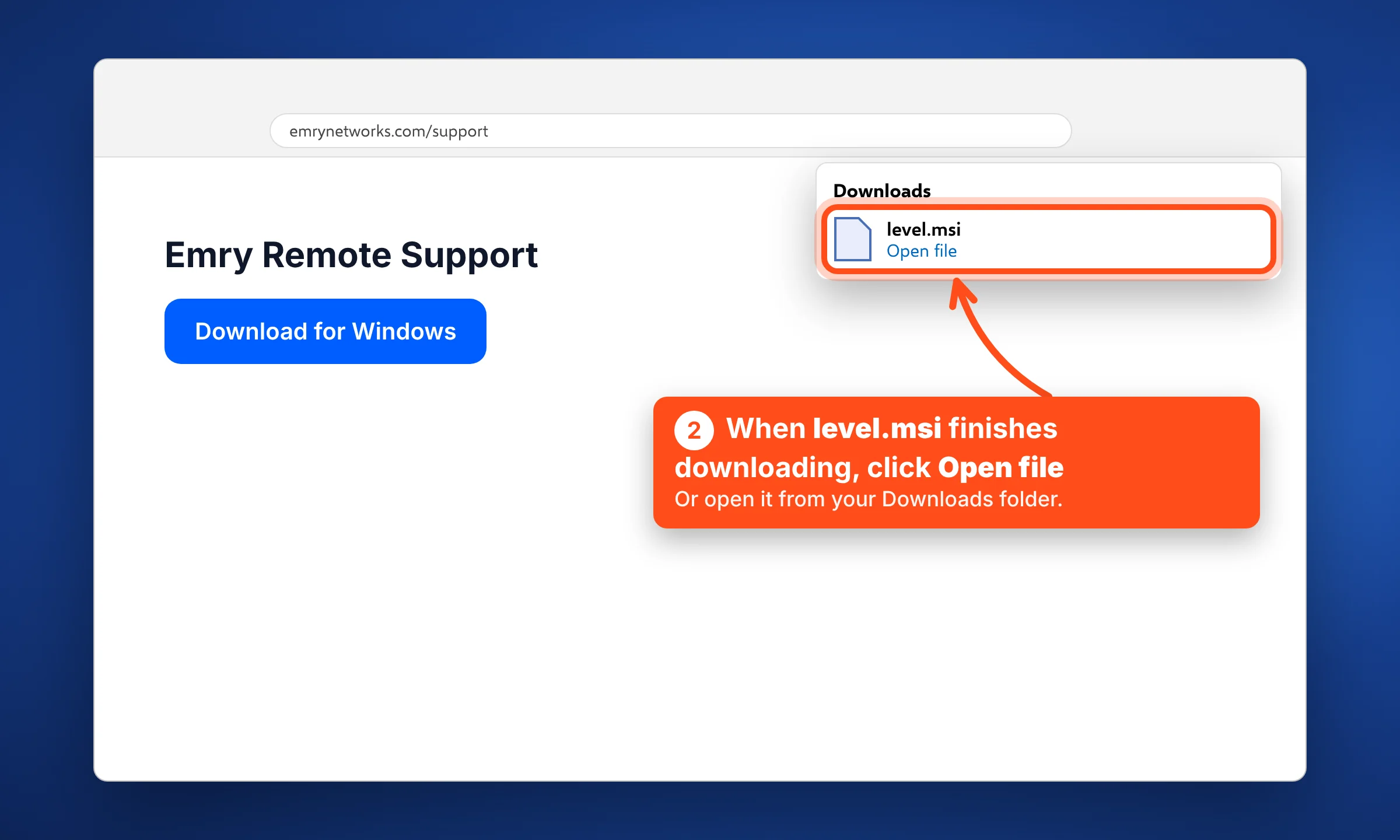
When level.msi finishes downloading, click Open file. You can also find it in your Downloads folder.
Step 3:Paste the install key
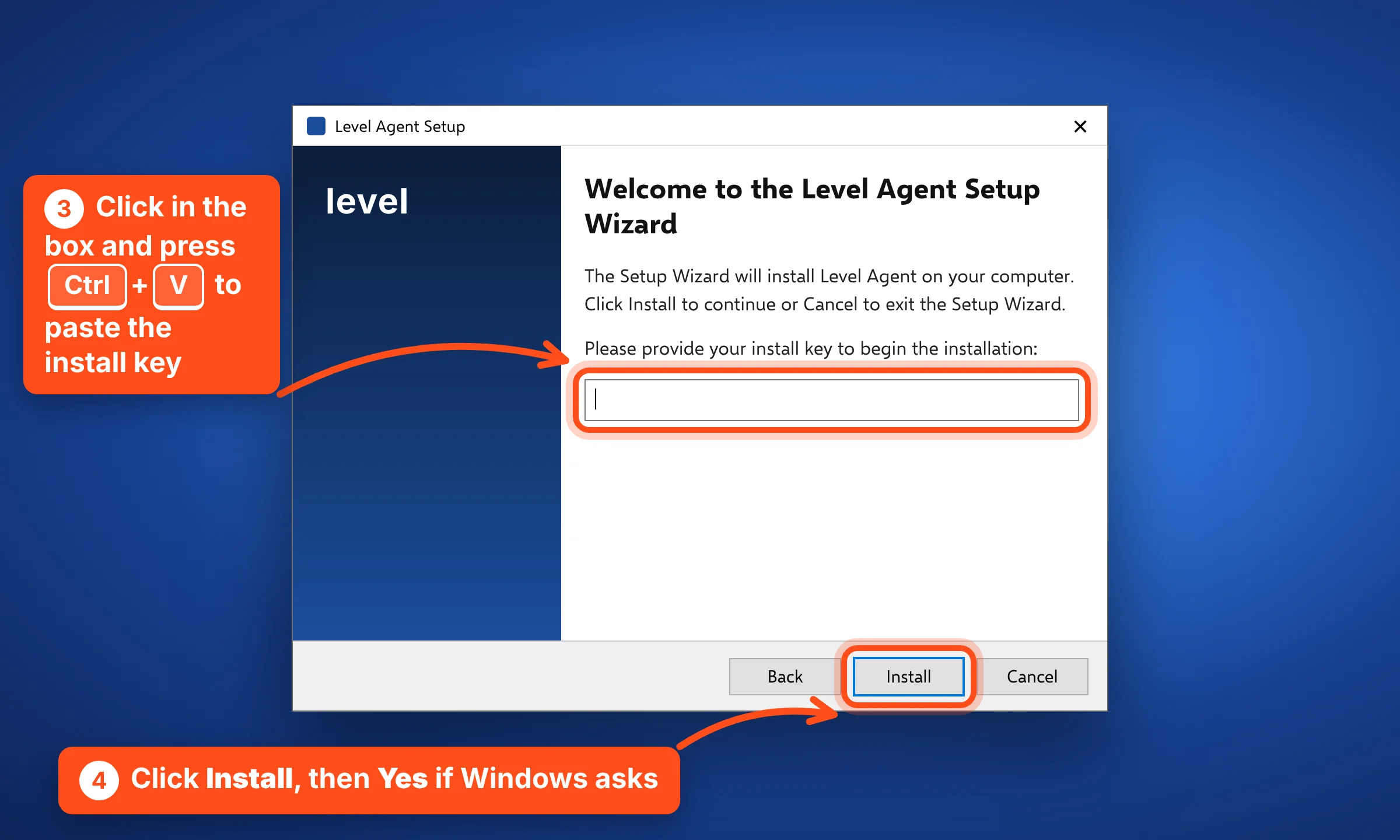
The Level Agent Setup window asks for your install key. Click in the box and press Ctrl + V. If the box is empty after pasting, click Copy key again and retry.
Step 4:Click Install, then Yes
Click Install. When Windows asks if this app can make changes, click Yes. Wait about a minute.
Step 5:Click Finish and tell your technician
Click Finish. Then tell your Emry technician you are done.
Mac
macOS 12 or later
Before you start
- Stay on the phone with your Emry technician if you can.
- You need to be signed in as an administrator, or have someone nearby who knows the admin password.
- Save your work and close other apps. The install does not restart your computer.
Option A · Recommended
The quick way: copy one command
This command downloads the right version of Level for your Mac and connects it to Emry.
Mac install command
LEVEL_API_KEY=shXj4Spj744MZdehgxVq6a7q:50006 bash -c "$(curl -L https://downloads.level.io/install_mac_os.sh)"Works on macOS 10.13 (High Sierra) or newer, on both Apple chip and Intel Macs.
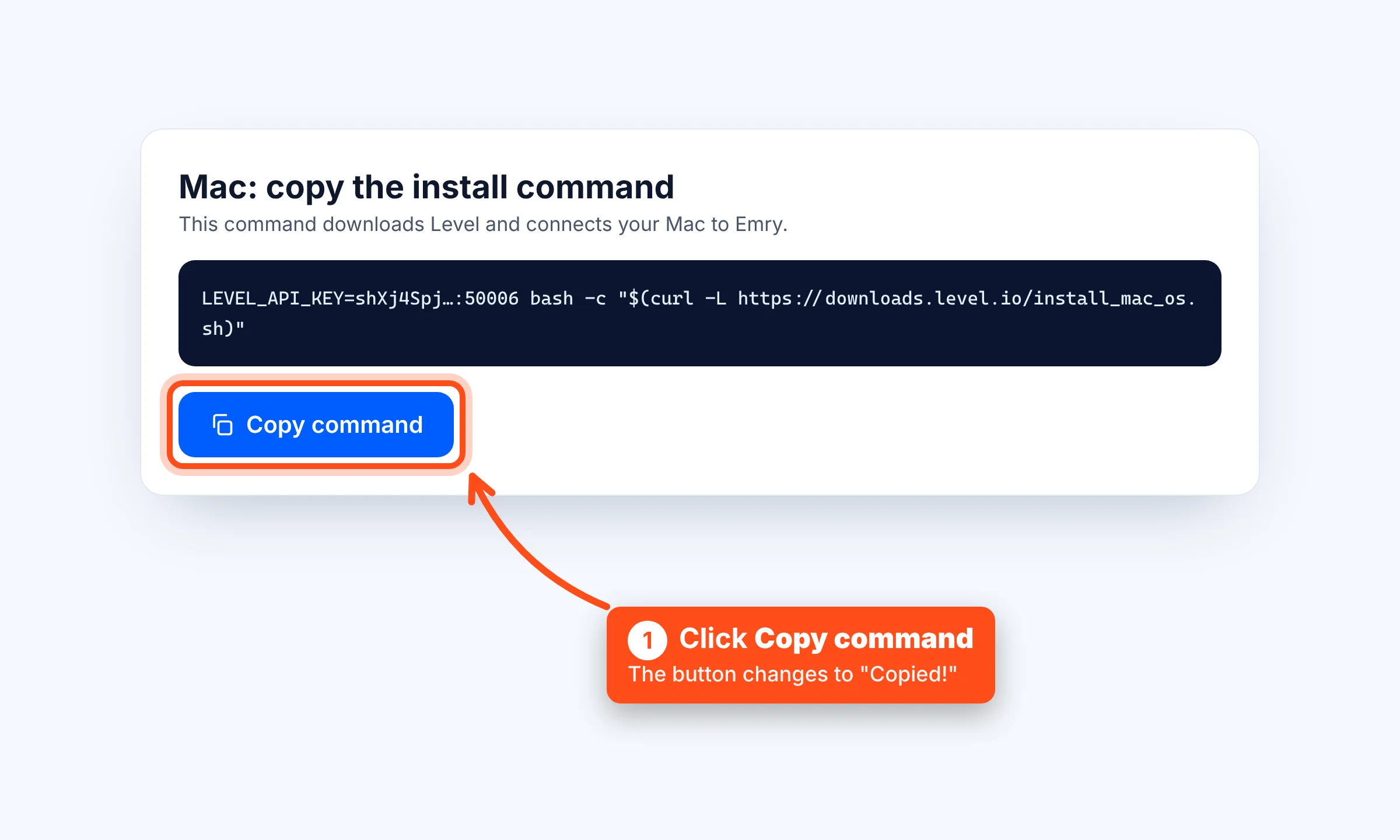
Step 1:Copy the command
Click the blue Copy command button above. It changes to Copied! so you know it worked.
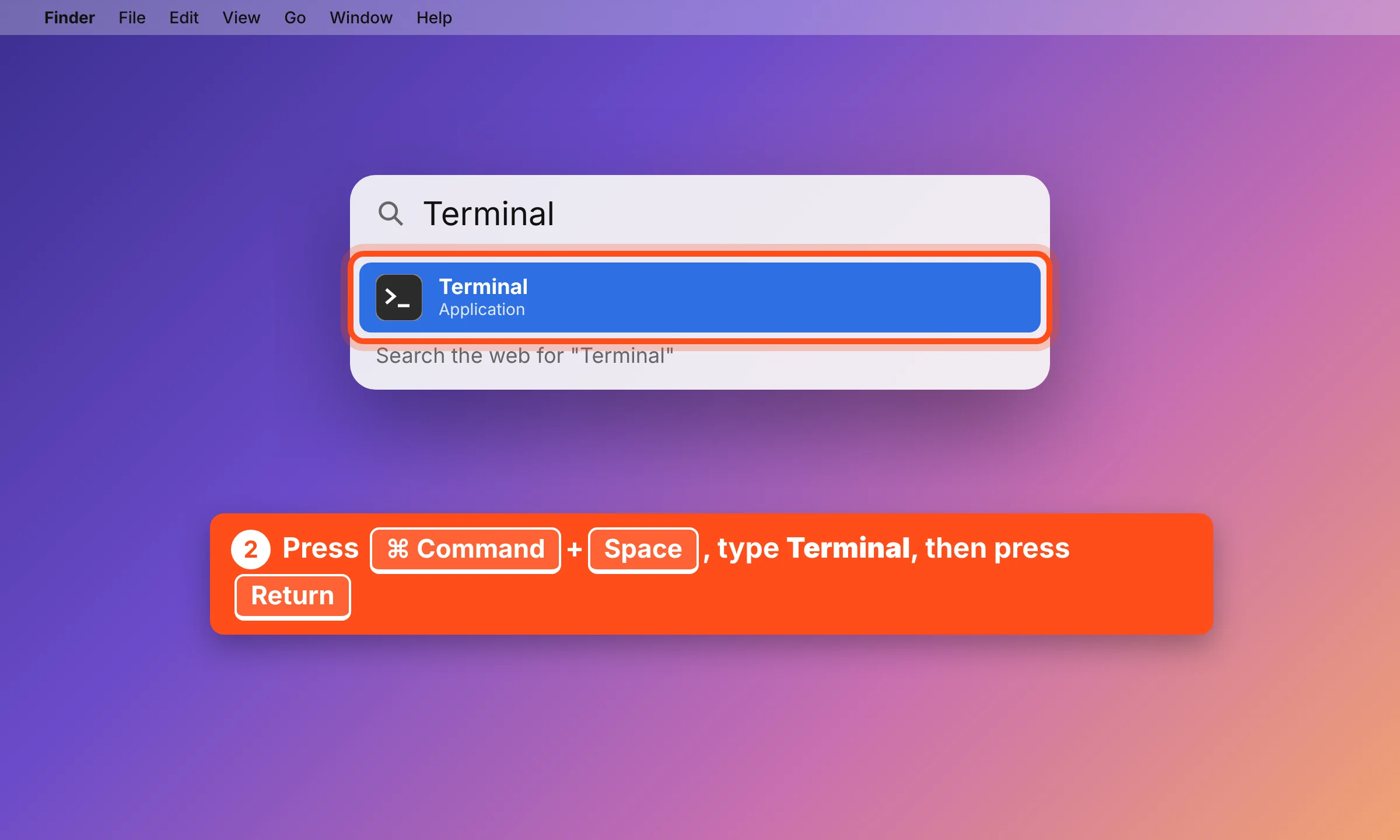
Step 2:Open Terminal
Press Command (⌘) + Space to open Spotlight. Type Terminal and press Return. A white or black window opens.
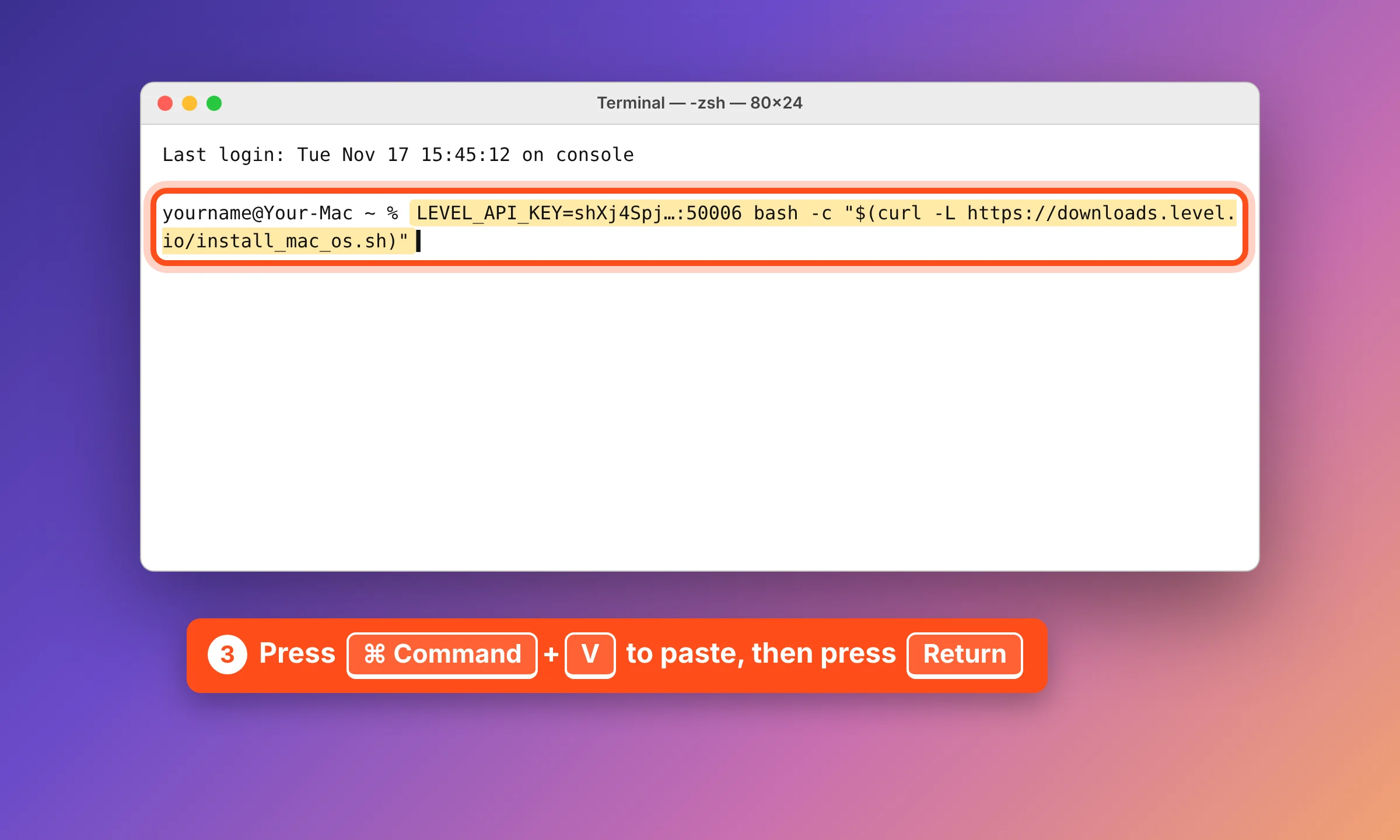
Step 3:Paste and press Return
Press Command (⌘) + V to paste the command. Then press Return.
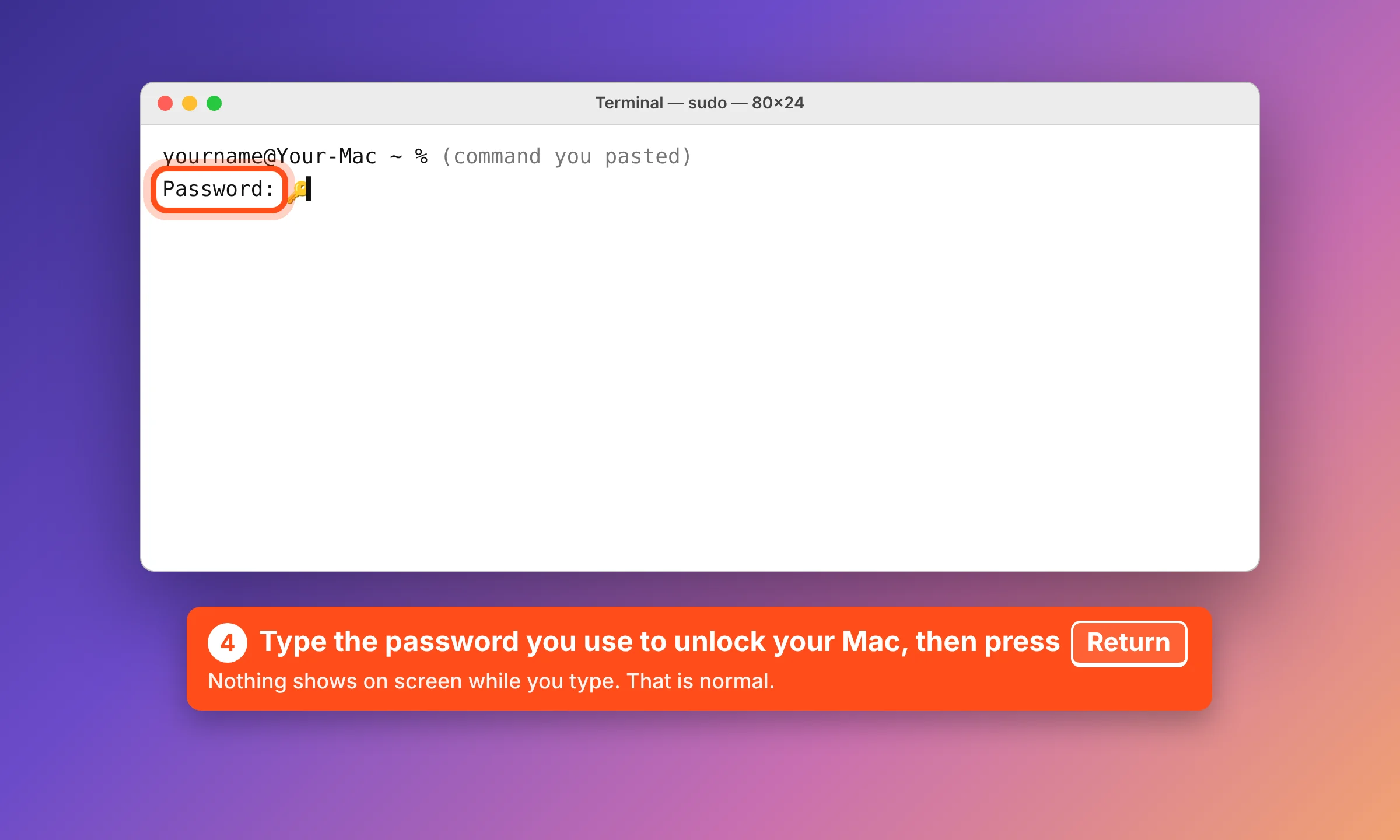
Step 4:Type your Mac password
If it says Password:, type the password you use to unlock your Mac and press Return. Nothing shows on screen while you type. That is normal.
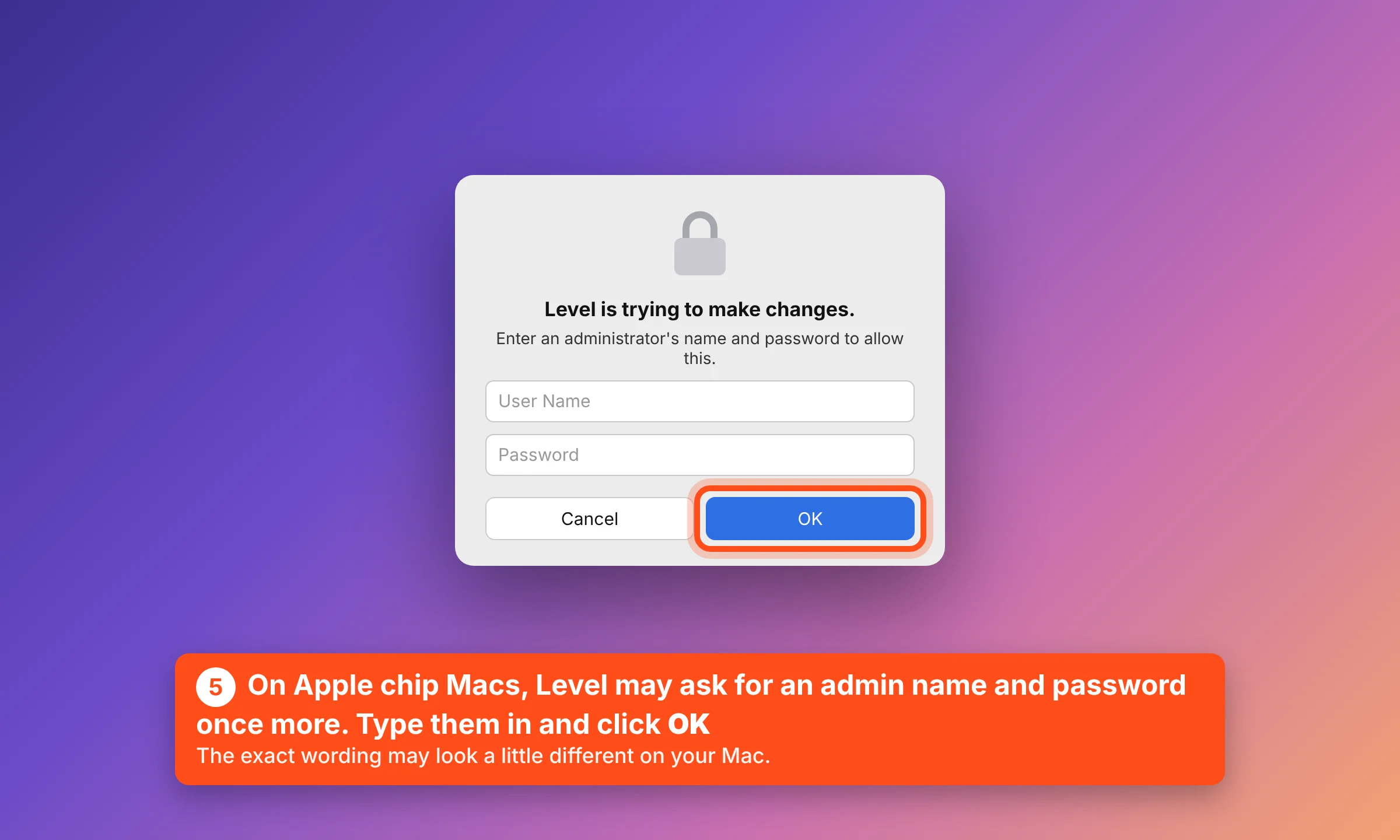
Step 5:Apple chip Macs: enter admin details if asked
On Macs with an Apple chip (M1, M2, M3 or newer), Level may ask once more for an administrator name and password. Type them in and click OK. This is expected.
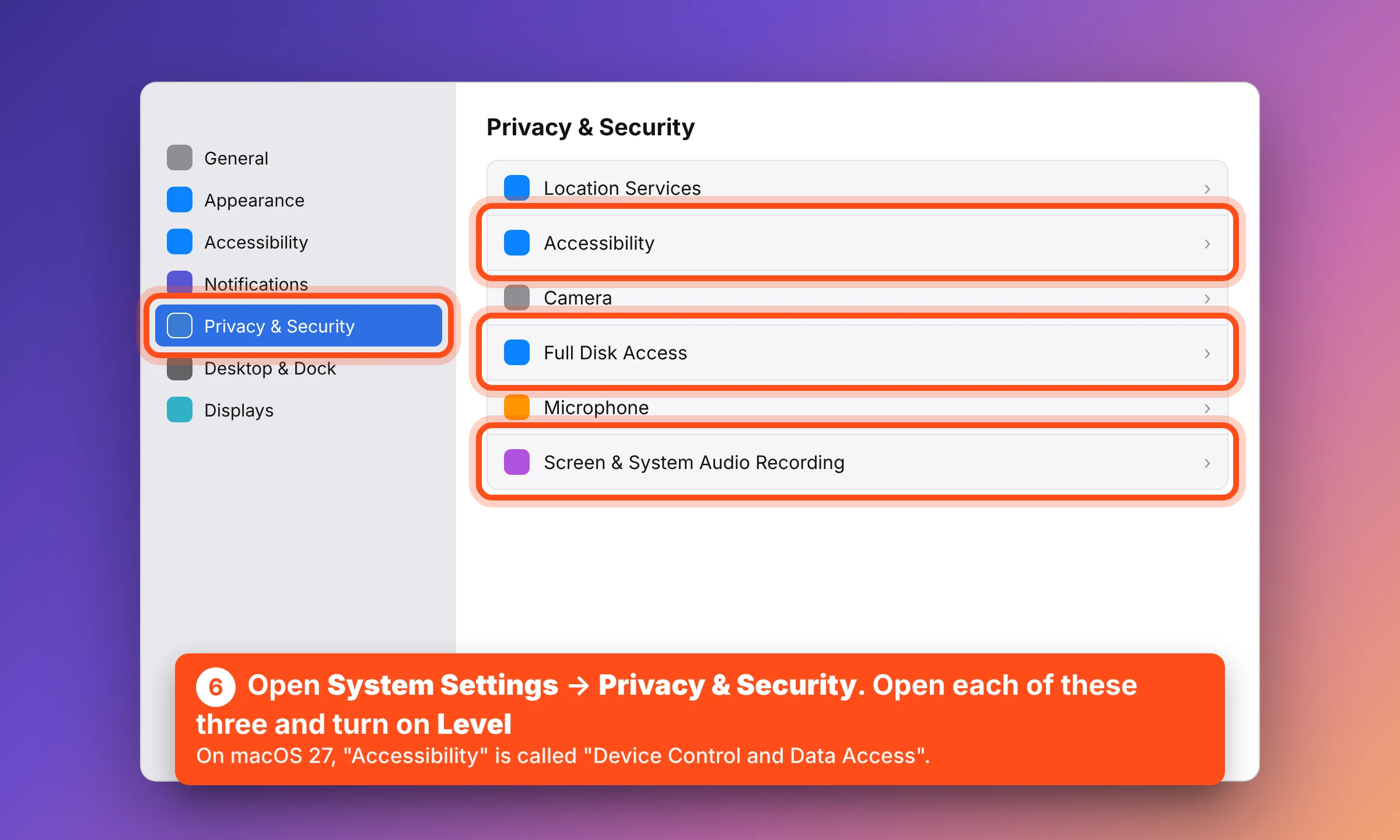
Step 6:Open Privacy & Security
While Level installs, your Mac may ask you to allow it. Open the Apple menu, then System Settings, then Privacy & Security. On older Macs this is System Preferences, then Security & Privacy, then the Privacy tab. You will turn on Level in three places: Screen & System Audio Recording (called Screen Recording on older Macs), Accessibility (called Device Control and Data Access on macOS 27), and Full Disk Access.
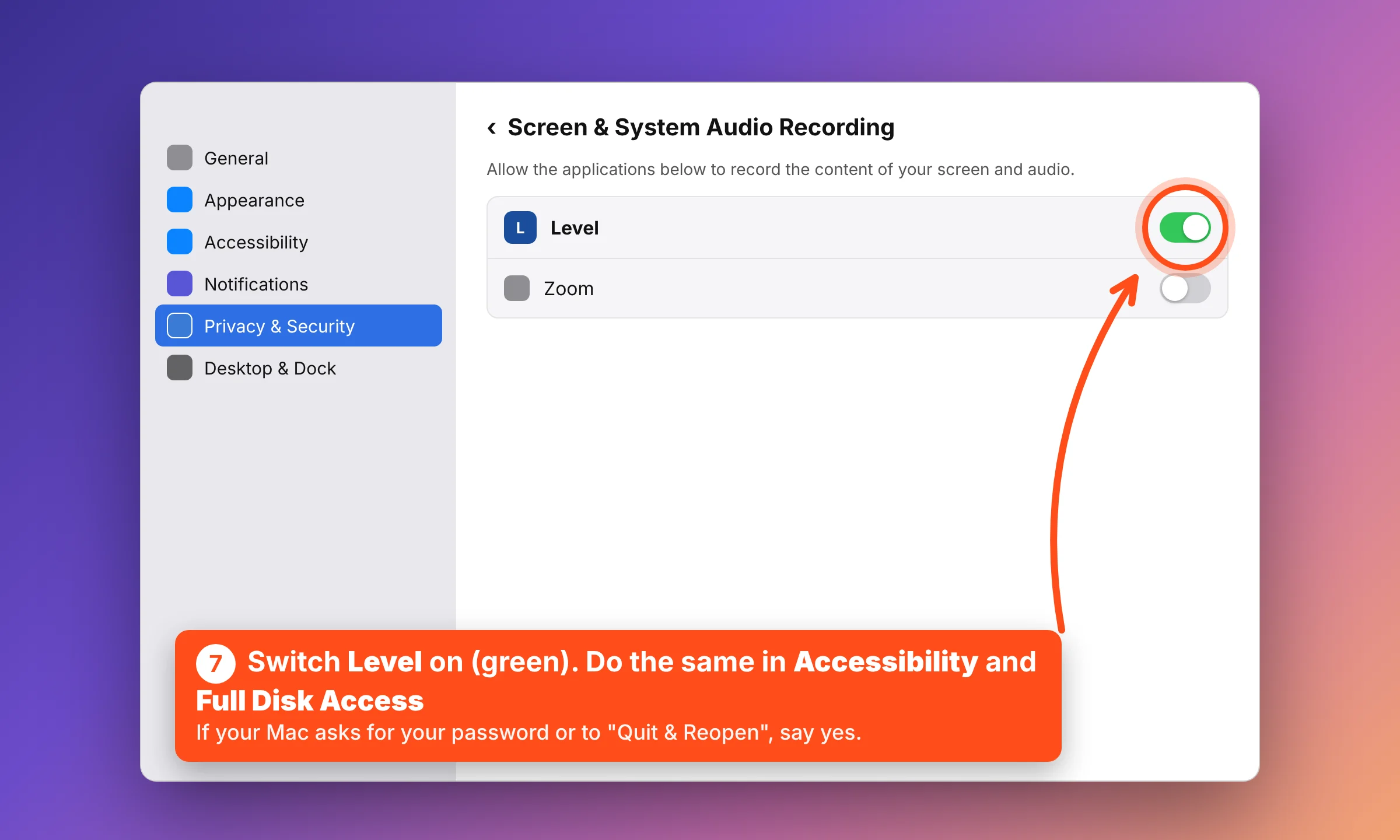
Step 7:Turn on Level in all three
In each of the three settings, switch Level on so it turns green. If your Mac asks for your password, or to Quit & Reopen, say yes.
Step 8:Tell your technician
That’s it. Tell your Emry technician you are done and we will connect from there.
Option B
Download and install it yourself
On a Mac, the download installs Level, but it does not connect to Emry until you run one short setup command. Both are below.
Not sure which Mac you have? Click the Apple menu, then About This Mac. If it says Chip: Apple M1 (or M2, M3, M4 and so on), you have an Apple chip. If it says Processor: Intel, you have an Intel Mac.
Both downloads come straight from Level, the company that makes the app. Not sure which to pick? Use Option A instead. It picks the right one for you.
Mac setup command (includes your install key)
sudo level --action=install --key shXj4Spj744MZdehgxVq6a7q:50006Step 1:Download the right file
Click the download button for your kind of Mac.
Step 2:Open the file and install
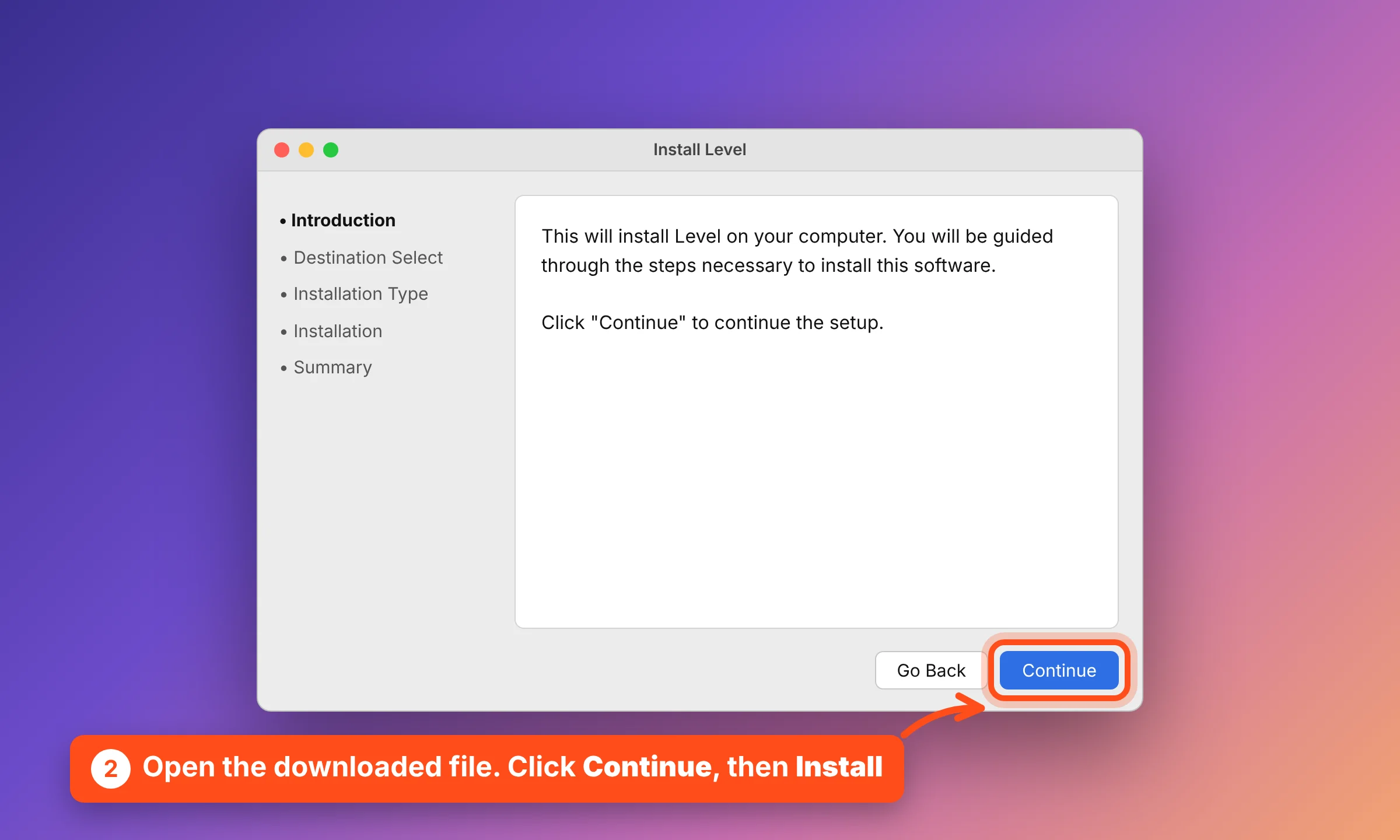
Open the file from your Downloads folder. Click Continue, then Install, and type your Mac password if asked.
Step 3:Click Close
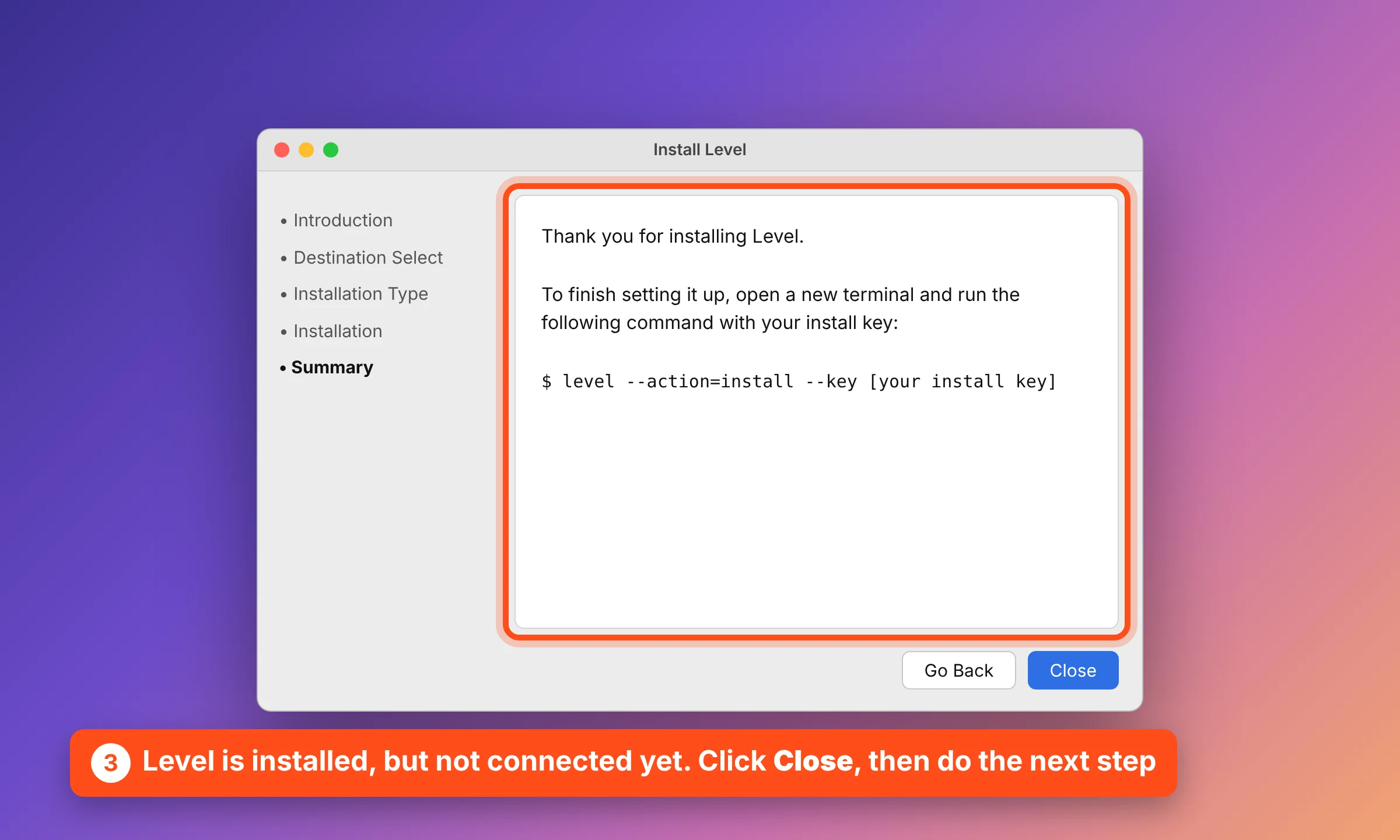
The last screen says to finish setup with a command. That is the next step. Click Close.
Step 4:Run the setup command
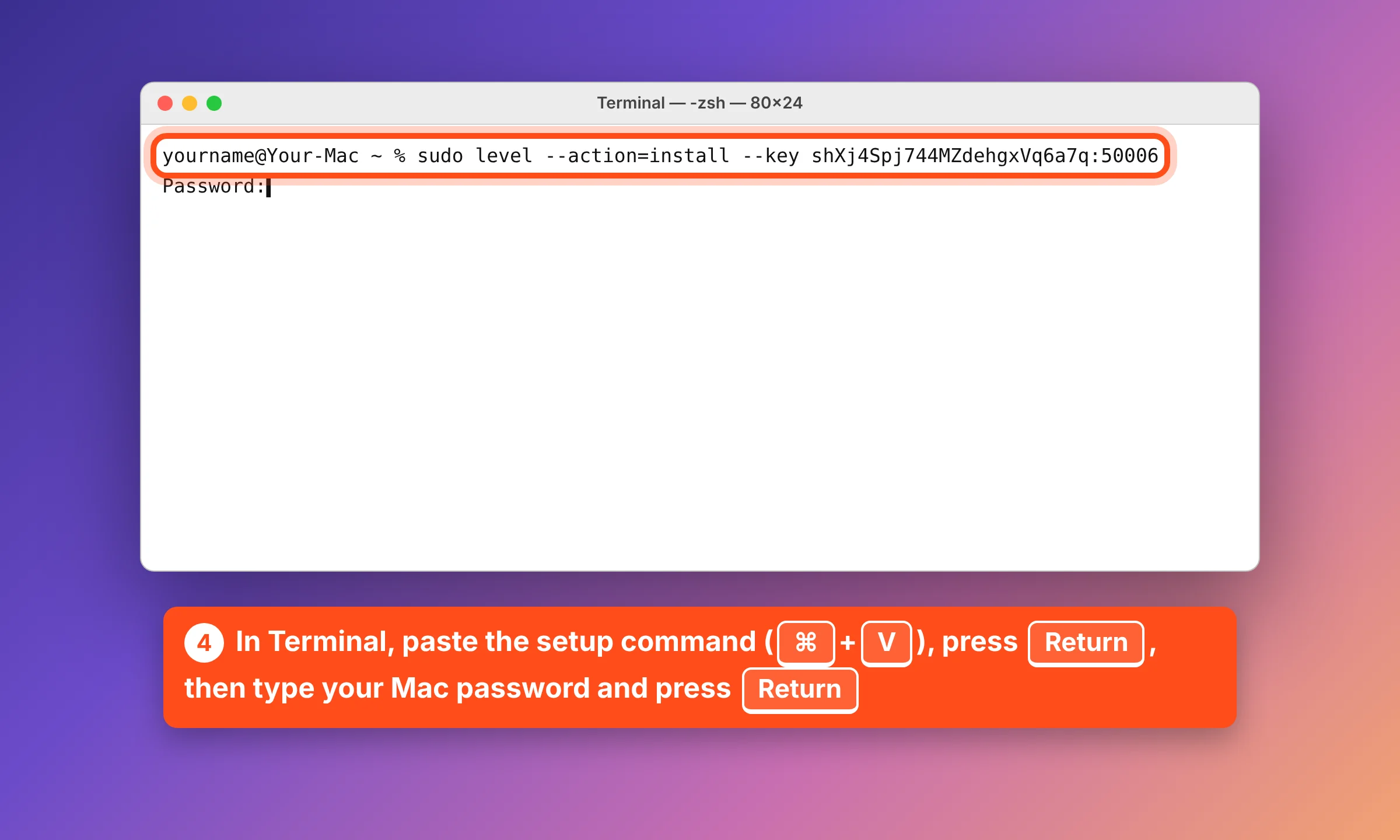
Click Copy setup command above. Open Terminal (press Command (⌘) + Space, type Terminal, press Return). Press Command (⌘) + V, then Return. Type your Mac password when asked and press Return. Nothing shows while you type.
Step 5:Apple chip Macs: enter admin details if asked
If your Mac asks for an administrator name and password, type them in and click OK.
Step 6:Turn on Level in Privacy & Security
Follow steps 6 and 7 in Option A above: turn on Level in Screen & System Audio Recording, Accessibility (Device Control and Data Access on macOS 27), and Full Disk Access.
Step 7:Tell your technician
Tell your Emry technician you are done.
If something goes wrong
My antivirus or Windows shows a warning
Some antivirus apps flag remote support tools. If you are on the phone with Emry, tell your technician what the warning says. If Windows shows “Windows protected your PC,” only click More info and Run anyway if your Emry technician tells you to. If you are not sure, stop and call us.
It asks for an admin password I don’t have
Installing Level needs an administrator account. If you don’t see Terminal (Admin), or your computer asks for a password you don’t know, ask the person who manages your computer, or call us and we will help.
My browser blocked the download
Some browsers warn about apps you download. Choose Keep or Download anyway, or use Option A instead, which needs no download.
Mac: Terminal says “command not found: level”
The app is not installed yet. Do steps 1 and 2 of Option B first, then try the setup command again.
I typed my Mac password but nothing showed
That is normal. Mac hides the password as you type. Type it and press Return.
Still stuck? We’ll walk you through it.
Call Emry and a technician will help you step by step.